Questions
about setting up and using e-mail on Zocoart servers come daily.
Hopefully these pages and links will help you get up and running
in short order!
Outlook
Express Setup
Startup Outlook Express,
then click Tools, then Accounts,
then Add, then Mail
Enter your name as you would like it to appear, and then
click Next (eg: John Doe)
Enter your full e-mail address, and click Next (eg: jdoe@mydomain.com)
Enter your mail server name for both incoming & outgoing
mail server, and click Next (eg: mail.yourdomain.com)
Enter your account name (same as your full
e-mail address) and password, and click Next (eg: jdoe@yourdomain.com)
Click Finish. The Internet Accounts window redisplays.
Click on the Mail tab, and your Account you just
created should appear.
Click on Properties, then Servers
Click on the box labeled 'My server requires authentication'
Click Apply, then OK, then Close
Outlook 2002 Setup
Start up Outlook, then click on Tools,
then E-mail Accounts
Click on 'Add a new e-mail account', then click
Next
Click on 'POP3', then click Next
Fill in the fields for your e-mail settings, using the following
as an example:
- Your Name: John Doe
- E-mail Address: jdoe@yourdomain.com
- Incoming mail server: mail.yourdomain.com
- Outgoing mail server: mail.yourdomain.com
- User name (same as your e-mail address): jdoe@yourdomain.com
- Password
Click on More Settings, and a new window displays
Click on the Outgoing Server tab
Click on the 'My outgoing server (SMTP) requires authentication',
then click OK
Click on 'Test Account Settings';
If successful click Close, then Next, then Finish
Eudora Setup
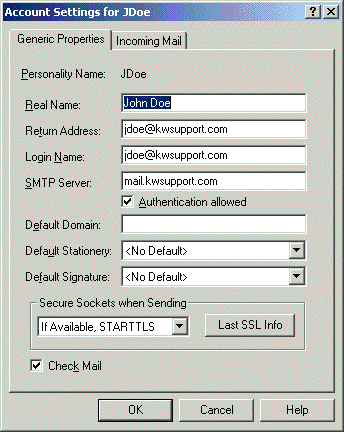
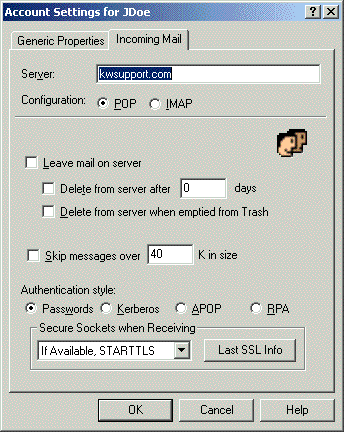
Screen snapshots for setting up an e-mail user in Eudora
Eudora 5.2 used, in the 'Advanced
Setup' mode.
Screen 1:
Screen 2:
Netscape Setup
Open Netscape Communicator, click on Edit and then choose
Preferences.
When the Preferences box comes up, click
on the "+" sign directly to the left of "Mail &
Groups" then click on Identity. The following box will appear:
Screen 1:
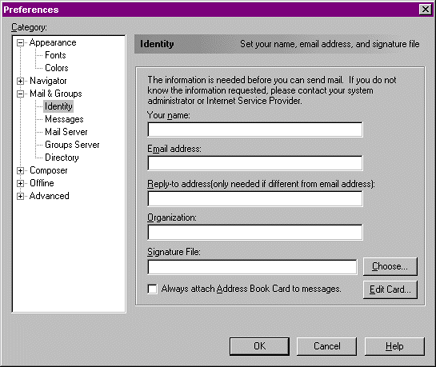
Enter the following information:
Your name: Type in the name
that you would like to appear in the from field of your outgoing
messages.
E-mail address: Enter the
full address of your e-mail account. For example, youre-mail@yourdomain.com
Reply-to-address: You do
not need to enter anything here, however, if you would like for
your e-mail recipients to reply to a different e-mail address, then
enter that address.
Organization: Type in the name of the organization
that you would like to appear in the from field of your outgoing
messages.
Click on Mail Server. The following box will
appear:
Screen 2:
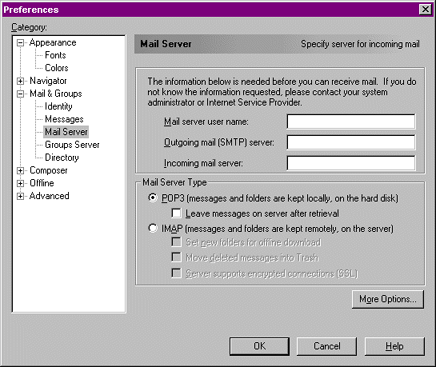
Enter the following information:
Mail server user name: Enter
your hosting account username if you want to check the e-mail for
the "default e-mail account", or enter the full e-mail
address of an e-mail account you created in your control panel.
In the "Password" field enter the password.
Outgoing mail (SMTP) server:
Enter your local ISP SMTP server. For example, mail.yourISP.com
or yourdomain.com, for example, if your domain is abc.com enter
abc.com (do not enter www.yourdomain.com or mail.yourdomain.com)
Incoming mail server: Enter
yourdomain.com. For example, if your domain is abc.com enter abc.com
(do not enter www.yourdomain.com or mail.yourdomain.com)
Click OK.
Your Netscape Communicator e-mail configuration
is now complete.
You will need to restart Netscape before
you can start sending and receiving e-mail.
UP
How
to use cPanel to create a new e-mail account!
Add New E-Mail User
1. Access your cPanel account
via your browser
2. Click on 'Mail Manager' > 'Add/Remove Accounts'
3. Click on 'Add Account' at the bottom of the screen
4. Enter user name and password, then click on 'Create'
UP
How
to view your e-mail using a Web Browser
Zocoart allows
you to access your e-mail accounts via a web browser. We refer to
this feature simply as Web Mail.
Using Web Mail:
Zocoart offers
three web mail interfaces: NeoMail, Horde and SquirrelMail. To access
your e-mail from a web browser, simply:
- point your browser to http://www.yourdomain.com/webmail
- then select either NeoMail, Horde or SquirrelMail.
  
"Connection Refused" Message:
Webmail uses port 2095 to access your e-mail.
If you get a connection refused message when using Webmail, chances
are that it is due to a firewall blocking port 2095. Please discuss
this with your company's network administrator.
Alternatives for accessing
your WebMail:
Mail2Web
UP
Allow
users to change their e-mail password
If you maintain a group of e-mail accounts
for your web site, sometimes users may wish to personally change
their e-mail passwords. If so, here's a suggestion on how to handle
it:
1. Set up each user through cPanel and assign
them a starter (default) password
2. Instruct them to access their e-mail via
the web (www.yoursite.com/webmail)
3. After logging in, they will be presented
with the screen to select between NeoMail, Horde and SquirrelMail.
On this screen is a link to 'Change Password'.
4. Have them enter their new password (twice),
and that's it!
UP
Problems
accessing e-mail account
Check your e-mail account name:
When setting up a client e-mail program to
retrieve user's e-mail, the e-mail account name entered for all
users should be in the form of: usernamer@domainname.com
The only exception is the main (admin) account
for your web site. The reason for this is that most web sites on
Zocoart is on shared servers, and including the domain name with
the username is the only way to make the e-mail account unique.
Firewall:
If you are trying to use Web Mail from your work site, and get a
connection refused, your company may have a firewall in place that
is blocking port 2095. Contact your company's network administrator
for options.
UP
Attachments
being blocked
Zocoart
automatically filters (blocks) certain file types if included as
an e-mail attachment. The reason is to protect the end user. Workaround?
First "zip" the file(s) you wish to attach as an e-mail
attachment.
Here is a list of the files that are blocked:
(?:ad[ep] # list of extns
# |ba[st]
# |chm
# |cmd
# |com
# |cpl
# |crt
# |eml
# |exe
# |hlp
# |hta
# |in[fs]
# |ws[fhc])
|
# |isp
# |jse?
# |lnk # |md[be]
# |ms[cipt]
# |pcd
# |pif
# |reg
# |scr
# |sct
# |shs
# |url
# |vb[se]
# |ws[fhc]) |
UP Masking
your E-mail address
Posting your e-mail address on your web site
is a sure-fire way to get an Inbox full of spam. There are E-mail
harvesting robots (programs) which crawl (search) the web for exposed
e-mail addresses.
Listed here are links to several methods
for generating code that will display your e-mail address correctly
on your web page, but will be virtually undetectable by these email-harvesting
robots.
Method #1:
This method requires no coding
or scripting. Simply add additional text to your e-mail address,
that makes your e-mail address incorrect! For anyone actually using
your e-mail address, tell them to first remove the additional text.
Example: if your e-mail address is john@abc.com,
then on your web site, post your e-mail address as:
john@NOSPAMabc.com
or
johnREMOVETHISFIRST@abc.com
By the way, this solution is also recommended
when you post or use your e-mail address at any web based newsgroup
or forum.
Method #2: E-Mail Obfuscator

Here is a great little web site that
let's you enter your e-mail address, and it will then convert your
e-mail address into an HTML code consisting of a series of hexadecimal
values, that you can then copy and paste onto your web page wherever
you wish to provide a link to your email address.
Example: john@abc.com gets
converted to something like this:
<a href="mailto:john@abc.com">
john@abc.com</a>
And here's how it looks embedded into a web
page:
john@abc.com
Although it looks like your email address
is there, if you look at the HTML code (which is all that the e-mail
robot spiders can view), it ain't really there!
Method #3: Hiveware Enkoder
Form 6.0

Here is another web site,
similar to the one above, except that it provides you options to
specify the text that should appear on the page and for the mouse
over, and optionally specify a default Subject line for your email.
Here's how it looks with the form filled
out:
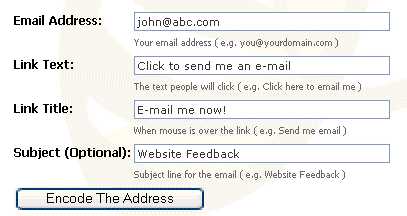
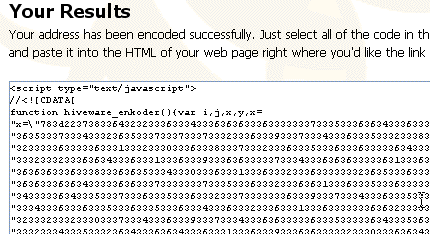
Here is what they generate for you:
UP
|








 Home
Home